

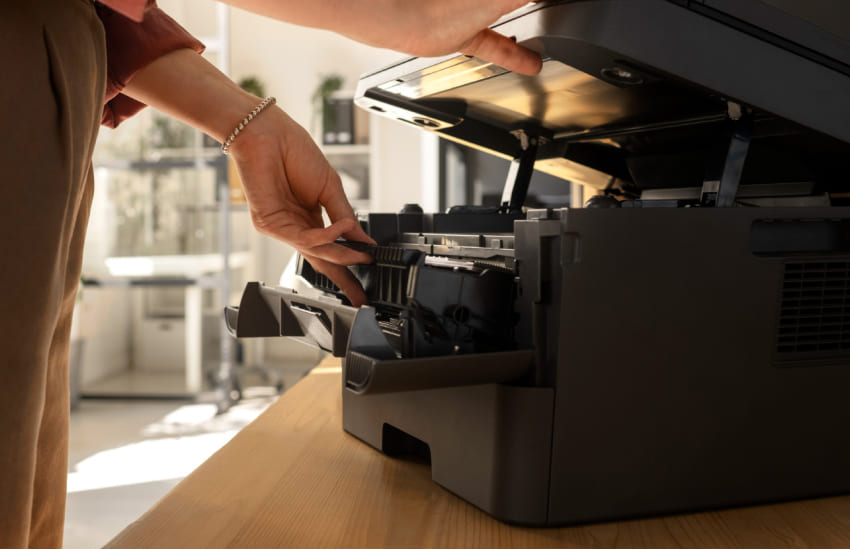
When the scanning function on a multi-function printer stops working, it can disrupt tasks that rely on digital copies of documents, forms, or images. Unlike printing issues, scanner problems often involve software communication, connection settings, or simple configuration oversights. The good news is that most scanner issues are easy to resolve once you understand where the breakdown occurs. A step-by-step approach helps restore scanning without unnecessary trial and error.
Before assuming a technical fault, it’s important to confirm that the scanner itself is ready and able to communicate properly.
Make sure the printer is fully powered on and not displaying any error messages. Some multi-function printers disable scanning if another function is paused or encounters an issue. Wait until the device shows a ready status before attempting to scan again.
An open or improperly closed scanner lid can prevent scanning from starting. Also, inspect the scanner glass for dust or debris, which may interfere with the sensor. A quick clean with a soft, dry cloth helps ensure accurate operation.
Scanning requires a stable connection between the printer and the computer or mobile device. Even small connection issues can stop the scanner from responding.
Ensure the printer is properly connected through the intended method, whether wired or wireless. If the connection was recently changed, the scanner may still be linked to an old configuration, preventing it from responding to scan requests.
Open your device’s printer or scanner list and check that the scanner appears as available. If the device only recognizes the printer function and not the scanner, the scan command may not reach the hardware.
Scanner problems are often related to software rather than the hardware itself. Reviewing these settings helps restore proper communication.
Some devices require a specific scanning application to be installed. Using a generic or outdated app may result in failed scan attempts. Opening the recommended scanning tool ensures commands are sent correctly.
If the scan destination is incorrectly set, scans may appear to fail when they are actually being saved elsewhere. Confirm the destination folder or device to ensure scanned files are easy to locate.
Drivers act as the bridge between your device and the scanner. When they fall out of sync, scanning may stop completely.
Outdated or corrupted drivers can prevent the scanner from functioning. Updating the driver or reinstalling the printer ensures both printing and scanning features are properly supported.
Restarting the printer and your computer clears temporary errors that may block scanning. After restarting, try scanning a simple document to confirm communication has been restored.
Wireless scanning adds convenience but also introduces additional points where issues may arise.
For wireless scanning to work, the printer and your device must be connected to the same network. If they are on different networks, scan requests will not reach the printer.
Weak or unstable networks can interrupt scan commands. Restarting the router and placing the printer closer to the network source often improves reliability.
Once scanning is restored, small habits help prevent recurring problems.
System updates can affect scanning compatibility. Keeping scanner software and drivers updated helps maintain consistent performance over time.
Running a test scan periodically ensures the scanner remains active and ready. Regular use reduces the chance of unnoticed configuration issues.
Scanner issues on multi-function printers are usually caused by connection gaps, software settings, or outdated drivers rather than hardware failure. By checking readiness, confirming connections, reviewing scan settings, and keeping software up to date, you can restore scanning quickly and confidently. A structured troubleshooting approach ensures smoother scanning and fewer interruptions in daily workflows.