

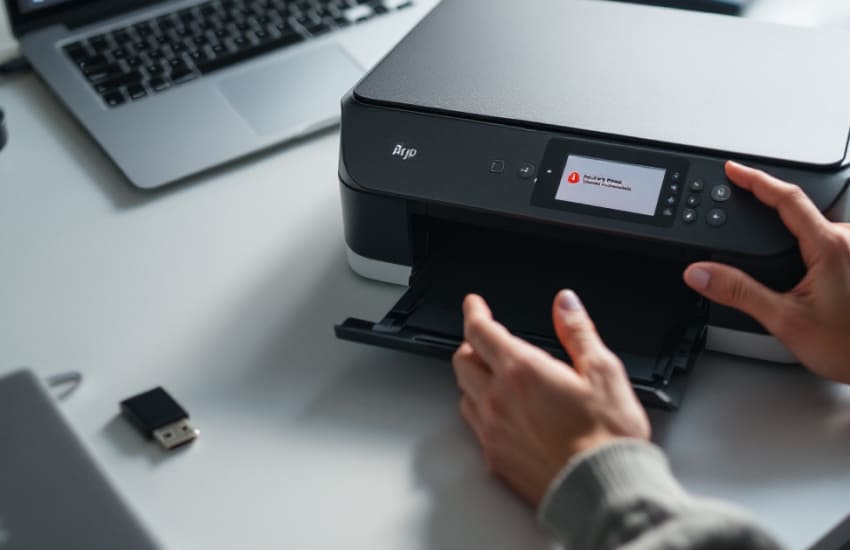
A printer that refuses to connect to WiFi can disrupt work and slow down even the simplest tasks. This issue is common and usually linked to network settings, temporary interruptions, or outdated configurations rather than a hardware fault. Understanding where the connection breaks down helps you fix it quickly and avoid repeated failures. With a clear, step-by-step approach, most WiFi connection errors can be resolved without replacing equipment.
Before adjusting advanced settings, confirm that the fundamentals are correct. Small network mismatches are often the root of WiFi connection problems.
Ensure the printer is trying to connect to the same WiFi network as your computer or mobile device. If your home or office has multiple networks, the printer may be attempting to join the wrong one, causing repeated connection failures.
Weak or unstable WiFi signals can interrupt the setup process. Check that your router is working properly and positioned close enough to the printer. Temporary signal drops often prevent successful pairing even when passwords are correct.
Incorrect login details or incompatible security settings commonly block printers from joining a network.
Passwords are case-sensitive, and even a small typo will stop the connection. Re-enter the password slowly using the printer’s setup menu and confirm each character before proceeding.
Some printers do not support certain security protocols or advanced router settings. If your network uses strict security configurations, adjusting them slightly during setup may allow the printer to connect successfully.
When connection attempts fail repeatedly, resetting the network settings often clears hidden errors and allows a fresh start.
Use the printer’s menu to reset its network or wireless settings. This removes stored network data that may no longer be valid and prepares the printer for a clean connection attempt.
After resetting, restart the wireless setup process and follow the on-screen instructions carefully. Completing the setup in one continuous session helps prevent interruptions that can cause connection errors.
Even when the printer connects to WiFi, your device may still fail to communicate with it. Aligning system settings helps restore proper interaction.
Check your computer or mobile device to ensure the printer appears as available and not offline. If another printer is set as the default, your system may not send jobs to the newly connected device.
Outdated drivers or companion apps can interfere with wireless communication. Updating them ensures compatibility with your operating system and improves connection stability.
Once the printer connects successfully, a few habits can help prevent future disconnections.
Printer firmware updates often include network performance improvements. Installing updates helps maintain a stable connection and reduces compatibility issues with modern routers.
Changing network names or passwords regularly can disconnect the printer. Keeping network details consistent reduces the need for repeated setup and lowers the chance of errors.
WiFi connection issues usually stem from network mismatches, incorrect credentials, or outdated settings rather than printer failure. By checking network basics, resetting wireless settings, updating software, and maintaining stable connections, you can restore wireless printing with confidence. A systematic approach not only fixes the current issue but also helps ensure smoother, more reliable printing in everyday use.