

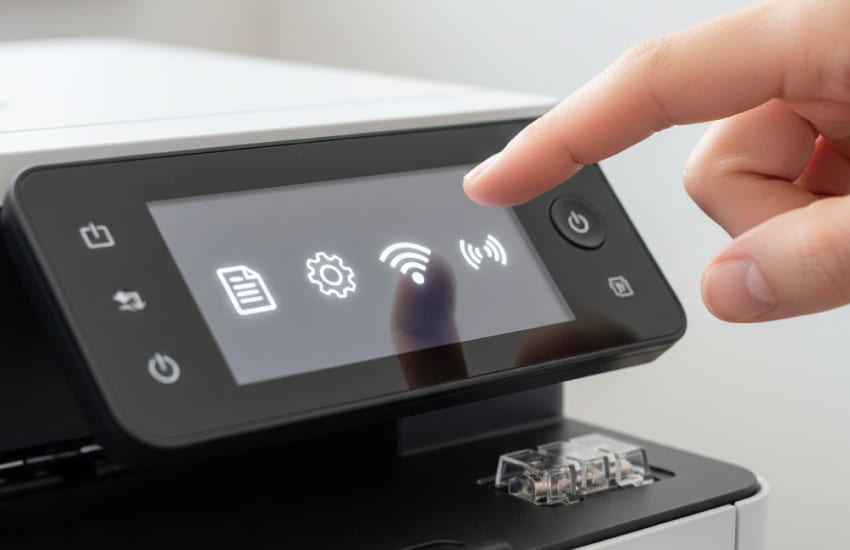
Seeing a printer marked as “offline” can be confusing, especially when it is powered on and physically connected. This issue often appears due to small communication gaps between the printer and the device sending the print job. In most cases, the printer itself is not faulty. By following a clear, step-by-step approach, you can identify what caused the offline status and restore normal printing without unnecessary effort.
A printer may show offline even when everything appears fine on the surface. This usually happens when the connection or system settings fall out of sync.
Brief network drops, sleep mode activation, or system updates can interrupt communication between the printer and your computer. When this happens, the device may not automatically reconnect, leading the system to label the printer as offline even though it is ready.
Sometimes the printer is set to offline mode by default within system settings. This can happen after a restart or when multiple printers are installed. The system may simply be pointing to the wrong status rather than detecting a real problem.
Before changing advanced settings, start with basic checks that often resolve the issue immediately.
Make sure the printer is powered on, fully started, and not displaying any error messages. Some printers take a few moments to wake from sleep mode. Once ready, check if the offline message clears automatically.
Open your device’s printer list and confirm that the correct printer is selected. If another printer is set as the default, your print jobs may not reach the intended device. Setting the correct printer as the default helps avoid future confusion.
If basic checks do not resolve the issue, adjusting system controls often restores the connection quickly.
Within printer settings, look for an option labeled “Use Printer Offline.” If it is enabled, disable it. This forces the system to attempt reconnection and often switches the printer back to an online state instantly.
The print spooler manages print jobs. When it becomes stuck, the printer may appear offline. Restarting this service refreshes communication and clears blocked jobs that may prevent the printer from responding.
For wireless printers, network alignment plays a major role in maintaining online status.
Ensure the printer and your computer are connected to the same network. If your network was recently changed, the printer may still be linked to the old one. Reconnecting the printer to the current network often resolves the issue.
Restarting the router and printer can stabilize weak or interrupted signals. Once both devices reconnect, check the printer status again and run a test print to confirm connectivity.
When offline issues persist, outdated software may be the underlying cause.
Drivers act as the bridge between your device and the printer. Updating them ensures compatibility with system updates and prevents communication failures that trigger offline errors.
If updates do not help, removing the printer and adding it again can reset all settings. This fresh setup often eliminates hidden configuration problems and restores proper online status.
An offline printer status is usually caused by connection or setting mismatches rather than hardware failure. By checking power and selection, adjusting system controls, stabilizing network connections, and keeping software updated, you can bring your printer back online efficiently. Following these steps not only resolves the issue but also helps prevent it from recurring during everyday printing.